Share your work with your team
Your saved queries, notebooks and Apps are files in a git repository. Sharing them is: keep a change, send it as a branch, open a pull request, and let a teammate review it before it reaches the main branch. The Source control page does each step for you, so you don't need a terminal.
Review matters because of what a saved query's label promises. Certified means a person checked the saved query and its tests passed; a pull request is where your team sees that change before everyone's answers depend on it. See Save and certify.
1. Connect your own repository
Create an empty repository on GitHub, GitLab or your Git server, then in ZLens open Source control (left rail, under Govern).
- No remote yet: click Add remote and paste the repository address.
- You started from the ZLens sample (
jaffle-shop-duckdborjaffle-shop-warehouse): the page says This is the ZLens sample. Paste your repository's address and click Connect. Your repository becomesorigin; the sample stays connected asupstream, so you can still get its updates. ZLens never sends to the sample.
ZLens only saves the address. Nothing is sent until you press Send.
ZLens connects with your own SSH key or Git credential helper. It refuses an address that contains a password or token.
A repository the host created with a README, licence or .gitignore is fine:
on the first send ZLens brings those files in, keeps your project's own
README, and adds any missing .gitignore lines.
A repository that already has other work
If the repository already holds a different project (a dbt project, say),
ZLens does not combine the two. To add ZLens to that repository, clone it
and run npx create-zlens-app@latest dql inside it; see
Add ZLens to your dbt project.
2. Keep and send a change
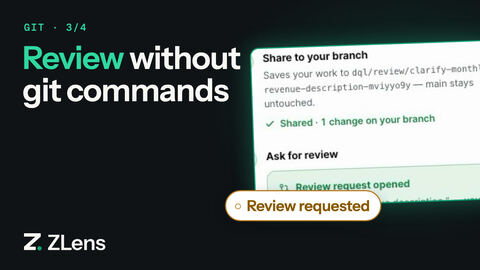
- Pick the files to share and describe the change (or click Write it for me from the changes).
- Click Share N changes. ZLens keeps (commits) the change on a new review branch and sends it.
The review branch is named dql/review/…, so main stays untouched. Write it
for me builds the description from the file names. It does not use AI.
If you keep changes on the main branch and press Send, ZLens asks first:
Send as a new branch (the default) moves your changes to a branch named
after them, such as zlens/add-revenue-block, and leaves the main branch as
the team has it. Send to main… sends straight to the main branch after a
second confirmation, for projects nobody else reviews. The first send to an
empty repository goes to the main branch, because there is nothing to review
against yet.
3. Open a pull request
Click Open review request. With the GitHub CLI signed in (gh auth
login), ZLens opens the pull request for you; otherwise it opens GitHub's
compare page, where you click Create pull request. The pull request
targets your repository's default branch, whether it is called main,
master or something else.
A teammate reviews it and merges it, and the change is part of the team's copy.
4. Stay up to date
The header says where you stand, checked in the background every five minutes and whenever you come back to the window:
- 3 new on the remote · 1 of yours not sent
- Up to date
- Can't reach the remote (hover for git's reason: often a sign-in or network problem)
When the remote has new changes, Get updates is highlighted and Send asks you to get them first.
Get updates brings your branch up to date:
- Your changes that were never sent are replayed on top of the team's, so the history stays a straight line for review. Changes you already sent are never rewritten.
- On a review branch, it also brings in what the team merged into the main branch since you started, so your pull request stays current.
- Unsaved edits come along. If the remote changed one of the same files, ZLens asks you to keep or discard your edit first.
- Undo update appears afterwards and puts your branch back where it was, until you do something else.
When a file changed on both sides
If you and a teammate changed the same lines, Get updates stops at Finish getting updates and lists those files. For each one:
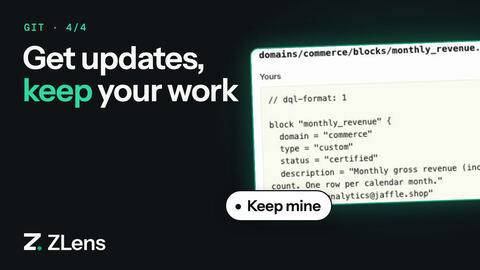
- Compare shows your version and the remote's side by side (Yours and On the remote).
- Keep mine or Keep theirs chooses one.
When every file has a version, click Continue. Cancel update puts everything back exactly as it was before you pressed Get updates.
Prefer the terminal?
Everything above is plain git. git pull --rebase, git push -u origin
<branch> and gh pr create do the same things, and the Source control page
shows whatever you did there. See Version and diff your work
for what is committed and how zlens diff shows changes in meaning.