Quickstart
Run ZLens on a small sample dbt project and get your first result. It takes about ten minutes.
You end with:
- the ZLens workbench open at
http://127.0.0.1:3474 - the sample DuckDB database connected
- a notebook with your first query result
- In the jaffle-shop-duckdb folder, run npm install; it installs the ZLens CLI into the folder.
- Run npm install --prefix .dql/connectors duckdb to install the DuckDB driver.
- Run npm run sync; it imports the dbt project and ends with dbt sync complete.
- Run npm run notebook; it prints the local URL.
- In the browser, Guided Setup has Open an existing ZLens project selected; its card names the dbt project in this folder.
- On Check the connection, the sample's DuckDB connection is already configured and the test has passed.
- Skip the optional AI step and finish setup.
- Open the welcome notebook, query dev.customers for the top five customers by lifetime spend, and run the cell; the result shows as a bar chart.
Before you start
You need:
- Node.js 20, 22 or 24, with 24 LTS recommended (
node -v). Node 25 and 26 are not supported yet: ZLens's DuckDB driver has no prebuilt binary for them. - Python 3.9 to 3.14, to build the sample with dbt (
python3 --version)../setup.shpicks a supported one for you. - git
No warehouse account, hosted service or sign-in is needed.
1. Get the sample and set it up
The sample is the Jaffle Shop dbt project on DuckDB, already set up as a ZLens workspace. Clone it and run its setup script:
git clone https://github.com/duckcode-ai/jaffle-shop-duckdb.git
cd jaffle-shop-duckdb
./setup.sh
./setup.sh builds the sample's DuckDB database with dbt, installs ZLens and
the DuckDB driver into this folder, and imports the dbt project. It ends with
Setup complete. and is safe to run again.
Without the script: the same steps by hand
Build the database:
python3 -m venv .venv
.venv/bin/pip install -r requirements.txt
.venv/bin/dbt deps --profiles-dir .
.venv/bin/dbt seed --profiles-dir .
.venv/bin/dbt build --profiles-dir . --exclude resource_type:seed
You now have jaffle_shop.duckdb and target/manifest.json in the folder.
Install ZLens and import the dbt project:
npm install
npm run sync
npm install installs the ZLens CLI (@zlens/cli) into this folder; no
global install is needed. npm run sync reads the dbt manifest and builds
ZLens's index. Its last line is:
✓ dbt sync complete — manifest, metadata, and agent index share the refreshed project state (… indexed object(s)).
You don't need to install the DuckDB driver: npm run notebook installs
the active connection's driver the first time it starts. Other databases
need their own driver; see Connect a database.
npm 12
npm 12 runs a dependency's install script only when package.json lists
it in allowScripts. ZLens needs two such scripts, which download native
binaries: better-sqlite3's, which the sample already allows, and
duckdb's, which ZLens allows in .dql/connectors and rebuilds when
npm run notebook starts.
If you ran npm install in a copy of the sample from before that, ZLens
stops with "ZLens could not load better-sqlite3". Fix that folder with:
npm install-scripts approve better-sqlite3
npm rebuild better-sqlite3
Do not run create-zlens-app in the sample
npx create-zlens-app inside the sample creates a second, empty workspace
in dql/, without the sample's domain, saved queries, App and notebook. If you
already have a dql/ folder from an older quickstart, delete it.
2. Open the workbench
npm run notebook
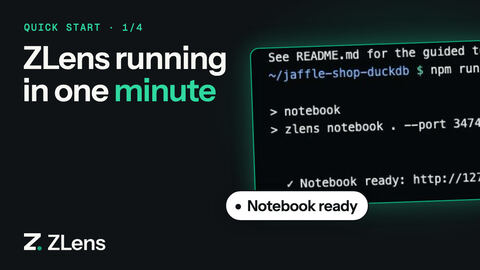
The terminal prints Notebook ready: http://127.0.0.1:3474 and your browser
opens it. Leave the terminal running.
3. Finish the guided setup
The first time, ZLens opens Guided Setup in four steps.
- Where does your data model live? The sample is already a ZLens
project on a dbt project, so Open an existing ZLens project is
selected. Its card names the dbt project in this folder and the
connection
jaffle_shop_dev(duckdb). Click Continue to credentials. (No dbt project of your own? See No dbt? Start from your database.) - Check the connection. The sample's DuckDB connection is already set
up: you see DuckDB · configured and Test passed. You already ran
setup (or
npm run sync), so you don't need Refresh dbt data. Extra warehouse schemas are under Advanced ("Optional: add warehouse schemas dbt doesn't cover"); the sample needs none. Click Continue to optional AI. - Set up an AI provider. This step is optional. Ask needs a model, but notebooks, saved queries, Apps and lineage do not. Set one up now (how) or click Skip AI for now.
- Where do you want to start? Click Finish setup · Build an App. It opens Apps; you don't need to build one now.
Setup saves where you are: if you stop zlens notebook halfway, it opens on
the same step next time. You can run the setup again later from
Settings → Overview → Guided Setup.
4. Run your first query
- In the left rail, click Notebooks.
- Click New Notebook, type a name such as
Customer orders, and click Create notebook. - Click Create DQL query, then Switch to SQL cell.
-
Type this query:
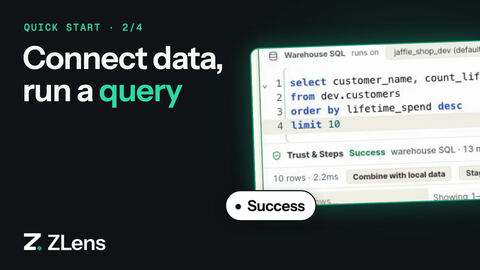
select customer_name, count_lifetime_orders, lifetime_spend from dev.customers order by lifetime_spend desc limit 10 -
Press Shift+Enter.
The cell shows Success and a table of ten customers. The notebook saves
itself as notebooks/customer_orders.dqlnb.
Your own dbt project
The sample ships with its ZLens workspace. For your own dbt project, create
one with npx create-zlens-app@latest dql from the dbt repo; see
Add ZLens to your dbt project.
No dbt?
ZLens also works straight on your database. Open the folder that holds your database file:
zlens notebook ./shop
It asks No ZLens project here. Create one? [Y/n], creates a Database only project around the file and opens Guided Setup on Database only. Setup asks which schemas to read and drafts the entities and joins for you to certify. See No dbt? Start from your database.
Next
- Find your way around the workbench.
- Ask a question in plain English.
- Keep the query as a saved query and certify it.
- Share your work with your team through your own git repository.
- Add ZLens to your own dbt project, or start from your database without dbt.