The saved query editor
The Saved queries page is where you write, run, review and certify saved
queries. On disk each one is a saved query (a .dql block file).
Open it
In the left rail, click Saved queries.
- With a saved query selected in the sidebar, the editor opens it.
- With nothing selected, it shows Create saved queries with three ways to start:
| Card | Button | Use it to |
|---|---|---|
| Ask AI | Describe the query | Describe what you need; AI drafts it from your saved queries, models and metrics. |
| Import SQL | Start import | Turn existing SQL into drafts. See Import SQL. |
| Build manually | Open builder | Build a saved query from metrics, dimensions, time grain and filters. |
Under Manual options you also find Blank SQL query (Create) and Query from metrics (Build).
New saved query in the editor toolbar brings you back to this start page.
The New saved query dialog opens from Query from metrics → Build, from New saved query on the Notebooks start screen, and from the command palette. It asks for the type (SQL query or Query from metrics), who it is for (Shared with the team or Private to me), a Name, a Domain and an optional Folder. Click Create saved query.
SQL or metrics
- A SQL saved query runs SQL you write against dbt models or warehouse tables.
- A saved query built from metrics asks for metrics and dimensions from the semantic layer, so you do not write joins. Use it when the metric is already defined in dbt.
The saved query page
When you open a saved query, you see its overview:
- the name, a status badge such as DRAFT or CERTIFIED, the domain and the owner;
- for a certified saved query, the certification receipt under the name. This overview is the only place the editor shows the receipt. If it was edited after it was certified, the badge reads RECERTIFY and a warning says the source no longer matches its certification receipt;
- Last run, Rows, Used in and Tests;
- Outputs, Parameters, the DQL source, tests and lineage.
Buttons on the overview: Open in builder, Run, and Delete (trash icon) for a saved query you may edit.
The toolbar at the top has:
| Button | Does |
|---|---|
| New saved query | Goes back to the Create saved queries start page. |
| Ask AI / Modify with AI | Has AI draft a new saved query, or change this one. |
| Run | Runs the saved query and shows the rows in Results. Shown while you edit; the overview has its own Run. |
| Save draft | Saves your changes as a draft. Never certifies. |
| Certify / Re-certify | Runs the certification checks. See Save and certify. |
| Delete | Deletes the saved query. Shown while you edit; the overview has its own delete button. |
Switch between Visual Builder and DQL Source to edit the saved query in a form or as text. Above the visual builder, the Query toggle switches between Semantic picker (metrics and dimensions) and Raw SQL.
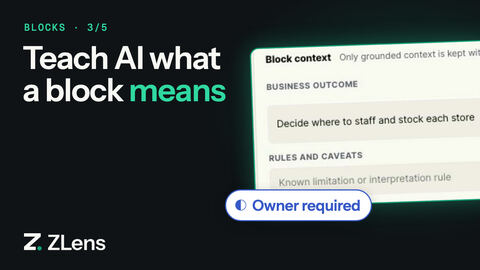
Below the query, Chart intent sets how Apps and answers show the saved query by default. Business outputs names what people see when it answers a question. The Context button shows how many context fields are filled, for example Context (3).
Context opens a panel with the saved query's context. Each field is written into its DQL:
| Field | DQL field | What it holds |
|---|---|---|
| Business outcome | businessOutcome |
The decision or outcome the saved query supports. |
| Agent guidance | llmContext |
A short note for AI about when to use the saved query. |
| Business terms | primaryTerms |
Business words for what the saved query measures, such as net revenue. Free text: they need not name a term declared in the project (terms does). |
| Source systems | sourceSystems |
Where the data comes from, such as billing. |
| Question aliases | synonyms |
Other words people use when they ask for this saved query, such as sales, bookings. |
| Rules and caveats | caveats |
Known limitations or interpretation rules, one per line. |
Type a value and press Enter or a comma to add it to a list field; click a value to remove it. A field the saved query does not have yet is added with its other fields, above its query, chart and tests.
The tabs at the bottom are Results, Run inputs, Lineage, History and Metadata. The certification panel is in Metadata.
Edit and save
- Click Open in builder (or switch to DQL Source).
- Change the query, the chart or the details. In the visual builder, the Details box holds Saved query name, Domain, Owner, Tags, Folder (optional) and Description. Owner reads Required to save until you fill it in.
- Click Run to check the rows.
- Click Save draft.
A saved query always has a name. If you clear Saved query name, the editor says A block needs a name. Type one to save; until then the block keeps its previous name. Save draft asks for a name first.
Saving a certified saved query does not change the certified version: your edit is saved as a separate draft beside it until you certify it.
Add tests
Tests are optional. In the visual builder, use the Tests box ("Optional. Certify runs them: a declared test must pass, and a column test must hold on every row."). In DQL source:
tests {
  assert row_count > 0
  assert revenue >= 0
  assert region IN ["east", "west"]
}
Certify runs the tests; Run does not. See Add tests.
Fill in the details that help Ask
Ask and your AI agents find saved queries by what they say about themselves. In the Metadata tab or the DQL source, set:
- a plain description of what the saved query answers,
grain: what one row is, such ascustomerorday,outputs: the columns it returns,llmContext: a short note for AI about when to use the saved query (the Agent guidance field in the Context panel).synonyms: other words people use for it (the Question aliases field). Ask finds a saved query by its aliases and business terms as well as by its name and description.
Certification records these as warnings when they are missing.
From the terminal
zlens new block "Revenue by segment" --domain finance --owner you@example.com
This writes a draft saved query under blocks/ (or domains/finance/blocks/ if
your project has domain folders) and prints its path. Open it under Saved queries
to run and certify it.