Work in a notebook
A notebook is where you explore: SQL and DQL cells, their results, and notes, in one file. When a query is worth keeping, you keep it as a saved query.
- Open Notebooks and create a new shared notebook named Store orders.
- Start a query cell and switch it to a SQL cell.
- Type a query that counts orders per store and run the cell; the result shows each store and its order count.
- Add a DQL cell and enter a block named orders_by_store with the same query and a bar chart.
- Run the DQL cell; it draws the bar chart.
- Save the notebook; it is stored as notebooks/store_orders.dqlnb.
Create a notebook
- In the left rail, click Notebooks.
- Click New Notebook (or the Create notebook icon next to Search notebooks…).
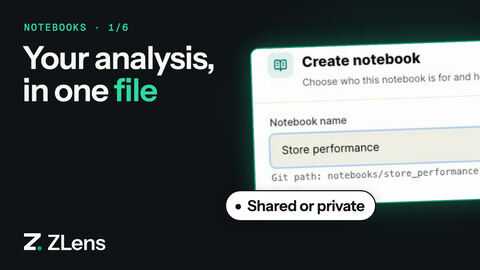
- Fill in the Create notebook dialog:
- Notebook name, such as
Customer retention analysis. - Domain context (optional) lists the notebook under that domain. The file stays where it is.
- Who is this for: Shared with the team saves it in
notebooks/, tracked by git. Private to me saves it in.dql/local/private/notebooks/, outside git, until you publish it. The hint under the name shows the path. - Starting point: Start empty, Explore a question, Investigate a metric, Check data quality or Review an experiment. Templates only add starter cells: DQL queries and note sections.
- Notebook name, such as
- Click Create notebook.
An empty notebook asks What are you researching? and offers:
- Use existing saved query opens a picker and adds the saved query you pick.
- Ask Notebook AI opens the Notebook AI panel.
- Create DQL query adds an empty DQL cell.
- Import local data opens the Import data panel.
Below them, + Add a research note instead adds a Note cell.
Add cells
Hover between cells and click Add cell. Pick a type:
| Type | What it does |
|---|---|
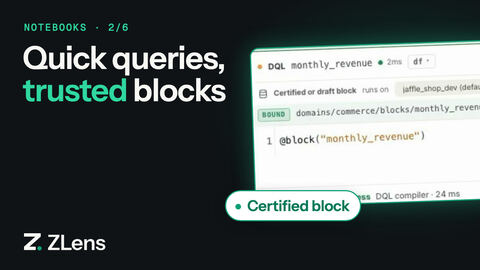
| Saved query | Opens a saved query picker and adds a DQL cell that runs the saved query you pick, such as @block("monthly_revenue"). |
| Ask AI | Opens the Notebook AI panel. It adds no cell until you insert an answer. |
| DQL | A saved query written in DQL, or an @block("…") reference. |
| SQL | Plain SQL against your database. |
| Import | Opens the Import data panel. It adds no cell until you import a file. |
| Note | Markdown text. |
| Input | A value, such as a date or a choice, that SQL cells use. See Input cells. |
Each cell's header shows its type: QUERY for SQL, DQL, MD for a note, PARAM for an input, and SINGLE VALUE for a KPI. A query cell also shows what it runs on: one of your connections, or the Local analysis workspace for imported data.
Write a DQL cell
A DQL cell holds a saved query (a .dql block definition). To start one, click Insert DQL example in an
empty DQL cell. The example runs on the Jaffle sample:
block "orders_by_store" {
  domain = "commerce"
  type = "custom"
  description = "Orders taken at each store."
  owner = "analytics"

  query = """
    SELECT location_name, COUNT(*) AS orders
    FROM dev.orders JOIN dev.locations USING (location_id)
    GROUP BY 1
    ORDER BY 2 DESC
  """
}
To switch an empty DQL cell to plain SQL, click Switch to SQL cell.
Use metrics and dimensions
@metric(...) and @dim(...) work in a SQL cell: ZLens replaces them with
the SQL from your semantic layer. A DQL cell rejects them, because a query
like SELECT @metric(...) ... is still plain SQL, not a saved query. In DQL, ask for
metrics with type = "semantic", which names a metric and its
dimensions. See Semantic block in the DQL reference.
Run cells
- Run one cell: Shift+Enter, Cmd+Enter (Ctrl+Enter), or the run button in the cell header.
- Run every cell: Run all at the top, or Cmd+Shift+Enter.
Work with a result
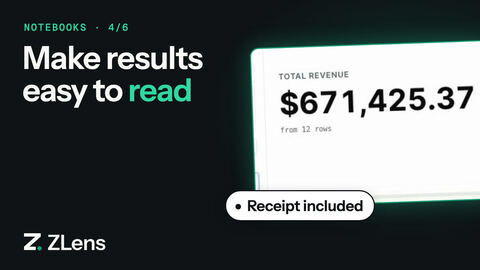
The result appears under the cell. The bar above it shows the row count and
the time it took, such as 7 rows · 12.4ms.
- Explore adds a new cell below that works on this result: Filter, Pivot, Chart or KPI.
- Table, Profile and Chart change how this result is shown. Profile summarizes each column. Chart opens a list of chart types. Suggest picks a chart from the result's columns. In chart view, the gear next to Chart (Chart configuration) sets the X and Y axes.
- A KPI cell shows one number. Set its Aggregation (Sum, Average, Count, Min, Max or Last), Metric field, Format (Number, Currency, Percent or Duration) and Label.
- CSV and JSON, in the table's toolbar, download the rows.
- Trust & Steps, under the result, shows how the cell ran: its status (such as Success), the engine, the time, where it ran, and the steps and SQL behind it: Compiled SQL, Executed SQL and Target binding & execution receipt.
Input cells
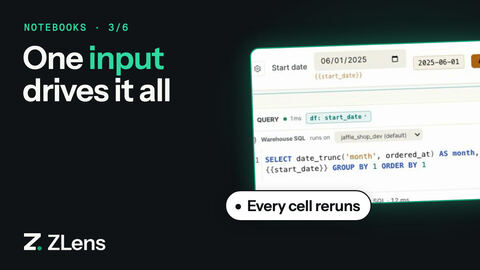
An Input cell holds a value that SQL cells use.
- Add an Input cell. Its settings (the gear, Configure parameter)
ask for a Variable name, such as
start_date, a Display label, a type (Text, Number, Date or Select) and a Default value. Click Done. -
In a SQL cell, write the name in double braces:
SELECT * FROM dev.orders WHERE ordered_at >= {{start_date}}ZLens puts the value in as a SQL literal, quoting text and dates. 3. Change the value, then click Apply. Apply re-runs every cell that uses
{{start_date}}. Changing the value alone re-runs nothing.
{{name}} also works with a named query cell: the SQL reads that cell's last
result as a table.
Import local data
Import in Add cell, or Import local data in an empty notebook, opens Import data:
- Choose Upload CSV, Local path (a CSV, Parquet or JSON file on this machine), or Available data for a dataset you imported before.
- Fill in Dataset name, and optionally Owner, Description and Tags.
- Under Storage, pick one:
- Local only: ignored by git. Best for private or temporary analysis. With a local path you can link the original file instead of copying it.
- Add to project: copies the file into
data/and writesdata/sources.yml.
- Click Import and profile, check the column types (Save types keeps your changes), then click Add starter query.
The starter query is a SQL cell that runs on the Local analysis workspace, the local DuckDB engine for imported data, not your warehouse. To join imported data with warehouse data, run a warehouse query cell and choose Combine with local data on its result.
Saving
Notebooks save themselves a moment after you stop typing. Save at the top (or Cmd+S) saves at once. A dot next to the title means there are unsaved changes.
The notebook is a .dqlnb file. Results go in a .run.json file next to it,
which git ignores, so data never ends up in a commit.
See where a cell's data comes from
Under a SQL or DQL cell, open Cell SQL lineage (SQL) or Project saved query lineage (DQL). Cell SQL lineage lists the tables the query reads, then SQL shape (outputs, joins, filters, groups), Query logic, and Business context from detected sources: the dbt models, metrics and saved queries behind those tables. Check the joins before you keep a query.
On a DQL cell, View in DAG opens the Lineage Inspector panel on that saved query. See lineage.
Save a cell as a saved query
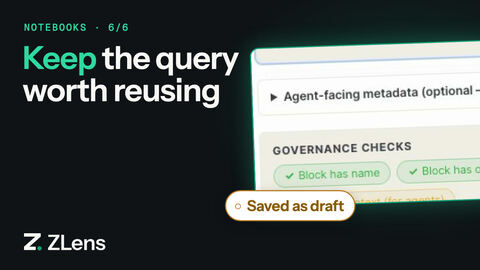
When a query is worth reusing:
- Hover over the cell and click Save as saved query ("Save this cell as a reusable saved query").
- In Save as saved query, fill in Name and Owner, and ideally a
Domain, Tags and Description. Governance checks shows what is
still missing. The dialog shows the file it will write, such as
domains/commerce/blocks/orders_by_store.dql. - Click Save draft. It stays greyed out until Name and Owner are filled in.
ZLens saves a draft saved query and opens it in the saved query editor. As the dialog says, saving never certifies: click Certify in the saved query editor when it is ready. See Save and certify.
Notebook AI and history
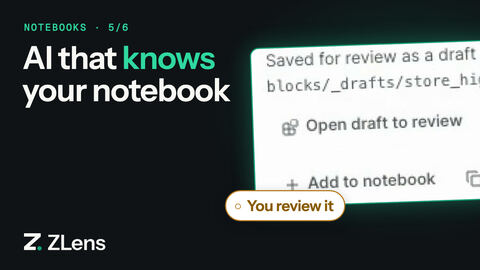
- Notebook AI (top right) opens a side panel that answers questions using the whole notebook, dbt and semantic metadata, and certified saved queries. It needs an AI provider.
- Ask AI on a SQL or DQL cell (hover over the cell) opens the same panel on that cell, titled with the cell's type and name, such as SQL cell · store_names. The AI gets the cell's query, and its error when the last run failed, so you can ask "Fix this query" or "Explain this cell".
- The history icon at the top of the panel (Show AI history) opens AI history: this notebook's Notebook AI conversations. Click one to continue it. Saved research for the notebook is listed below them.
Close the panel and open it again: the conversation is still there.
An answer comes with a button that puts it in the notebook:
- Add to notebook adds the answer as a new DQL cell.
- Add SQL to notebook adds a SQL answer as a new SQL cell.
- Replace cell & run appears when you open Notebook AI from a cell's Ask AI button. It replaces that cell with the answer and runs it.
Share a notebook
A shared notebook is a file in notebooks/. Commit it from
Source control.
A private notebook shows Private in the sidebar. To share it, hover over it
and click the Publish icon ("Publish … to notebooks/ so the team can see
it"). ZLens moves it into notebooks/, and you commit it from there.
To strip local-only state, such as run results, pins and UI state, from a
notebook that is already in notebooks/, run:
zlens promote notebook notebooks/customer_orders.dqlnb --to shared
zlens promote notebook rewrites the file where it is. It doesn't move a
private notebook into notebooks/; use the Publish icon for that.