Build an App
An App is a set of pages for a team or a decision, built from tables, saved queries and Metrics. You build it in App Studio as a private draft, then publish it as files in your project. The words App Studio uses are listed in Words used in App Studio.
- Open Apps and click Build new App.
- Choose Start manually, name the App, pick the Commerce domain and click Continue to data.
- In Data for this App, the Customers row reads Table · Certified · Commerce; open it to see its Measures, Dimensions and Time.
- Click Add to App, then Open Studio with 1 source.
- Click the Lifetime Spend measure; a new tile shows the total. Click Add to page.
- Back in Apps, click Build new App. With no AI provider it opens on Quick start; click Choose data.
- Add Customers, then click Next: choose tiles. What should this App show? lists a KPI, a Trend (when the data has a date) and a Top row, each with its title.
- Click Build App. The page shows exactly those tiles.
1. Start a new App
- In the left rail, click Apps.
- Click Build new App if the form is not already open. With an AI provider connected it opens on Describe with AI; without one it opens on Quick start.
- Choose how to start:
- Describe with AI (AI provider connected): answer What decision should this App support? AI picks data, certified first, and drafts a first version. You check the data it chose and every tile before anything is applied.
- Quick start (no AI provider): answer What should this App be called?, or leave it empty and the App is named after its Domain, such as Sales overview. You pick the data, then a total, a trend and a top list (see Quick start without AI). Connect an AI provider to describe an App in your own words opens Settings → AI provider.
- Start manually: answer What should this App be called?
- Pick a Domain, or leave All domains. Lists of data start on this domain; you can still pick data from any domain.
- With AI or by hand, pick a Starting layout: Executive Brief, Operational Dashboard, Investigation or Blank page. A layout other than Blank puts one intro at the top of the page for you to edit (its wording differs by layout); you add the tiles. Starting manually, the button then reads Continue to data (with an intro).
- Click Generate editable App (AI), Choose data (Quick start) or Continue to data (manual).
Until you publish it, only you can see the App; the header says Not published yet (only you can see it). Editing an App you already published, it says No changes yet · readers see the published App, then Unpublished changes (only you can see them) once you change something. Back to Apps lists the App straight away. Every way opens on the Data step first: by hand and with Quick start it is Data for this App; with AI it shows the data AI picked (see below).
There is no data rule to choose: every App can use any data, certified first, and each tile says whether it is certified (see Publish and trust).
Build with AI: describe, check the data, build pages, review tiles
With Describe with AI, AI works in four steps and nothing is applied until you say so.
- Describe. While AI plans, the Data step says AI is picking data and shows its progress: Understanding your decision, Finding certified tables, Metrics and saved queries, Checking trust and capabilities and Preparing source review.
- Check the data AI picked. The Data step says AI picked N sources,
For: your goal, and Check the data before AI builds pages. Remove
anything you don’t trust. Each pick under AI picks shows its type,
trust and domain, such as Table · Certified · Commerce, Creates N
tiles, and a Why: line with the reason AI picked it.
- Remove moves a pick to AI suggestions; Add back returns it.
- Notes from AI lists what the planner could not do, in plain words with the data's name, for example Top Customers covers only part of what you asked. or Journey Customers can't answer this with its approved fields yet.
- Not covered yet lists the parts of your request no data answers. Generate draft DQL drafts data for one of them; the draft is Not certified yet.
- If AI needs a choice from you, AI needs one more decision asks it; answer it, or click Re-run proposal.
- The Add data list on the right works as for a manual App. Add to App makes AI plan again with that data, and the progress shows while it does.
- AI is given certified data first; data nobody certified is offered too, and its tiles read Not certified yet.
- Build pages. Click Build pages with N sources. Discard drops AI's picks and leaves you on Data for this App to pick data yourself.
- Review the tiles. The page shows the proposed tiles, and the Review the tiles panel lists them. Skip leaves a tile out and Keep brings it back, here or on the tile itself. Click Apply N changes to add the tiles and their data to the App, or Discard. Back to data returns to the AI picks until you apply.
Quick start without AI
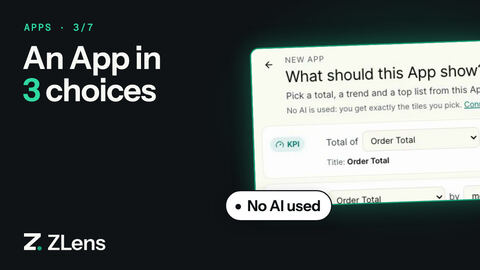
With no AI provider connected, nothing can read a request, so App Studio doesn't guess from your words. Quick start builds the first tiles from three quick choices instead, and you get exactly the tiles you pick.
- In Data for this App, add the data the App will use, then click Next: choose tiles.
-
What should this App show? lists three rows:
- KPI: Total of a measure, such as Order Total.
- Trend: a measure by a time grain (day, week, month, quarter or year), over the data's main date.
- Top: Top 5, 10 or 25 of a field, such as Customer Name, by a measure from the same data.
The pickers list the fields of this App's data with the same names as the Data pane, including fields of related tables (under Orders → Customer). Data in the App's Domain is listed first, then certified data. Each row shows the title its tile gets: Total Lifetime Spend (a summed measure whose name doesn't already say total), Order Total by month, Top 10 customers by Lifetime Spend. 3. Add another tile adds a KPI, Trend or Top row, up to six tiles. × removes a row. 4. Click Build App. The tiles are added to the page as ordinary field tiles: the KPI as a single value, the trend as a line, the top list as a bar chart sorted by the measure and showing the top N. Change any of them later like any other tile. Back to data returns to the Data step.
In the Studio, the toolbar's Quick tiles (instead of Ask AI) opens the same choices for the page that is open, with Add N tiles to page; so do Add quick tiles on an empty page, in the App settings and in the publish review. What only an AI can do is not shown without an AI provider: tiles have no Edit with AI or Change with AI, and readers' Ask about … box says Ask needs an AI provider. The owner can connect one in Settings. Design layout with AI says Connect an AI provider. With an AI provider connected, all of these work as described above.
A draft made earlier with keyword suggestions still says Suggested from keywords · no AI connected where its plan is shown.
Whichever planner runs, a proposal never adds a tile the page already shows: the plan's note says Revenue by region is already on this page, so it wasn't added again, and the review counts only the tiles it adds.
From Ask or an MCP client
An App that AI builds outside App Studio opens in App Studio at the Data step, so you check the data first. Nothing is written to your project until you publish, and publishing goes through the same checks.
- Ask. When you ask for an App, Ask shows a Build Brief: its tiles with their trust (Certified, Metrics · Not certified yet, Draft SQL · Not certified yet) and Not covered yet. Untick what you don't want and click Open in App Studio. The data behind the tiles you kept becomes the App's data, and App Studio opens at AI picked N sources. Ask's SQL is never added as a tile: its question is listed under Not covered yet.
- An MCP client (Claude Code, Codex, Cursor).
build_dql_apppicks data for your description, certified first, and returns a link to the draft, for examplehttp://127.0.0.1:3474/?appDraft=build_…. Open it to continue in App Studio. The draft is also listed in Apps under Not published yet.
2. Choose the data
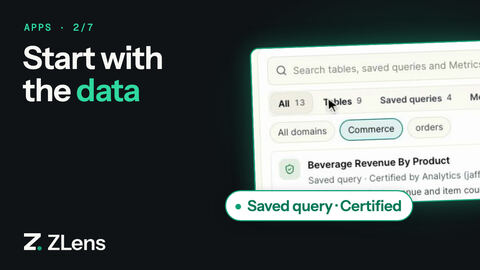
Data for this App lists the App's data on the left (This App's data) and one Add data list on the right. Everything in it has fields:
- Table: a database table ZLens has checked, or one that is Not checked yet. ZLens checks a table once before you use it.
- Saved query: a reusable, reviewed query (a
.dqlblock file). Its fields come from its result, with no review step (see Fields from a saved query). - Metrics: measures from a semantic model.
The chips All · Tables · Saved queries · Metrics narrow the list to one kind. Search with Search tables, saved queries and Metrics, and narrow it by domain (All domains or one domain). Certified data is listed first.
Each row shows where it comes from (Table, Saved query or Metrics), its trust in two words (Certified by name · date, or Not certified yet; hover for why, such as Checked by you, not certified yet), its domain and owner. Click a row to see its Measures, Dimensions and Time; Show 10 sample rows reads a few of its rows.
- Click Add to App. The row then says Added, with Remove. Data that is Not certified yet is added the same way; its tiles say so.
- On a database table (it says Not certified yet), click Check and add, check the numbers, and click Check and use. ZLens runs the same checks as certifying (it compiles and runs, what one row is, how each number is shown: money stored as cents is shown in dollars). The table is added as Not certified yet, for example Orders · Not certified yet with Checked by you · 22 Oct, not certified yet and what the check found. You can build tiles from it right away. Checking is not certifying: see Check vs certify.
- When a table stores amounts twice, the check asks one question, for example These columns are stored twice, in dollars and in cents: Subtotal and Order total. OK (chosen first) uses the dollar columns and hides the cents copies. Show both keeps both, with the cents columns as plain numbers. The choice is kept in the data's definition.
- Data says only Certified or Not certified yet. Tables Guided Setup's Draft my models drafted add drafted — review in Modeling, with Review in Modeling; tables your model already uses are listed first too (hover for why). Either way Check and add reuses the row key the model checked, so the check counts one column.
- On a saved query, ⋯ → Make row-level is only needed for row-safe measures (see Make a saved query row-level).
Click Open Studio with N sources, or Skip, start empty. You can add more later: in the Studio, the Data tab's source menu lists This App's data first, then + Add data….
3. Add tiles
The left panel has three tabs: Data, Pages and Filters. On the Data tab, choose a source from This App's data and click a measure or a dimension (or drag it onto a shelf). A new tile appears on the page; add more fields, then click Add to page. A table, a saved query and Metrics all work the same way.
Fields from a saved query
A saved query's output columns are its fields, on the same shelves as any
other data: numbers are Measures, text and true/false columns are
Dimensions, and dates are Time fields you can group by day, week or
month (a month column by month and longer). Count of rows is always
there. ZLens reads the column names and types once, when you open or add the
saved query; nothing changes in the saved query and its trust stays its own.
Describe with AI and Ask's Open in App Studio read them the same way,
so the tiles AI proposes from a saved query use its fields too.
A tile over a saved query runs as one query over the saved query's complete result:
- As it is. When the tile groups by all of the saved query's own grouping
columns (for
monthly_revenue, by Month by month), each point is one row of the saved query and its values show as they are. - Rolled up. Any other tile adds rows up: numbers default to Sum, so Gross Revenue as a KPI is the total and Gross Revenue by quarter adds up three months. The tile says Rolled up from a saved query, and its receipt says Rolled up from the certified result of monthly_revenue.
- Averages can't be added up. A column named like an average or a ratio
(
avg_,average,pct,percent,rate,ratio,_share,margin) shows as it is only at the saved query's own grouping. Rolled up, ZLens refuses to sum it and offers Min and Max of it instead.
A certified saved query's tiles are Certified; a saved query nobody certified keeps its tiles Not certified yet. A saved query that asks for values (parameters) has no fields: under Add as it is, click Table, Chart or KPI to show its result.
Make a saved query row-level
Rolling up a saved query's result is right for sums and counts of its rows. For row-safe measures, such as a distinct count of customers or an average over rows, make it row-level:
- Choose the saved query on the Data tab and click ⋯ → Make row-level (or ⋯ → Make row-level on its row in Add data).
- Check the numbers reads the saved query's columns and checks them against its rows: Each row is one … names the column that is different on every row, Numbers lists what to add up or count (switch any off, and pick Number, Money or Percent), and Group and filter by lists the rest.
- Click Check and make row-level. ZLens writes a row-level definition into the same saved query file (same name, same place; no copy) and runs the same checks as Check and use.
- Checks pass: the saved query is row-level, checked, and Not certified yet. Certify it when you are ready, like a table.
- Checks fail: it is row-level and stays Not certified yet.
- Click Use its fields.
A certified saved query shows Making it row-level means this saved query is not certified until someone certifies it again. If its checks pass it is checked and not certified again until someone certifies it. If they fail, nothing changes until you click Send for review and make row-level.
The tile shows its rows. Its Tile settings panel shows Data & trust, for example Certified by Kranthi · 21 Oct, the checks that passed, the data it uses, and how many rows it shows (12 rows).
Other ways to add content:
- Add tile on the page, or Draft with AI on an empty page.
- Heading and Text under Page elements.
- Summary under Page elements adds a short auto-written summary of the page's numbers above the tiles. Pages have no Summary unless you add it; Remove Summary takes it off again.
- Ask AI in the top bar to change the page with AI.
An AI proposal on the page opens Review the tiles. When it uses data the App does not have yet, the review lists it as New data for this App: with its type, trust and Why: line. Apply N changes adds that data to This App's data, the same way Add to App does.
Sort and show the top N
Click ⋯ on a measure's pill on the shelves. Sort & top comes first:
- Sort: Ascending or Descending by that measure, or Clear.
- Show top: 5, 10, 25, All, or type another number and click Show. The tile shows that many rows, highest first.
A new bar chart over categories (not dates) is sorted by its measure, highest first. A bar chart with more than 50 categories draws the top 25 and says Showing top 25 of 935 · Show all. Show all draws every category; Top 25 goes back. A tile with its own Show top number draws exactly that many.
The pill says how the tile is sorted: Top 10 ▾ when it shows the top 10 by that measure, Sorted ↓ or Sorted ↑ when it is only sorted by it. Click it to open the same menu.
A new bar of names, such as Customer Name, starts as Top 10, highest first, and the pill says so. Change it with Show top.
Filters, sort and more in Tile settings has the same Sort by and Show top controls. Both edit the same tile, so they always agree.
After Add to page the new tile is not selected: the next field you click starts another new tile. To change a tile, click it first. With a tile selected, Delete removes it, also while you are in its Tile settings (but not while you type in a field).
When two items in This App's data have the same name, each shows where it comes from, for example Orders · Table and Orders · Metrics.
Fields from related tables
A table's rows often point to other tables: each order has one customer and one store. When ZLens knows that join and it is checked as many-to-one, the other table's fields are fields of your table too. Under Orders, the field list shows Orders → Customer (Customer Name, Signed Up At, …) and Orders → Location (Location Name). Click or drag them like any field: Order Total with Location Name is a bar labelled with store names, not their ids. A join can go one step further when that step is also many-to-one (Orders → Customer → Region). In Add data, a table's row says which tables it reaches, for example joins: customers, locations.
- Totals never change. ZLens joins the other table with a LEFT JOIN on the join's keys, and only when that table holds each key once, so no order is counted twice and orders without a customer still count. When the join's last warehouse check no longer covers it, ZLens checks again (one quick query) before the tile runs; if the key now repeats, the tile says so and does not run.
- The other way is not followed. One customer has many orders, so Customers does not show order fields: they would count each customer once per order. The field list says Orders per customer: add it from Orders. Add Orders to the App and use its fields.
- Trust. A join that is certified (in Modeling) keeps the tile's trust. A join that was only drafted, for example by Draft my models in setup, shows Not certified yet on its group, and a tile that uses it is Not certified yet (its receipt says Uses a join nobody has certified), like any data nobody has certified yet. While you build, the tile's status line says Not certified yet: it uses a join nobody has certified. Certify the join from the publish dialog (Certify this join) or from the Data tab's ⋯ → Certify the join to …, without leaving the App (see Certify a join). Modeling shows it certified afterwards.
- Receipt. A tile's receipt lists each join it used, for example Joined to customers on customer_id (each order has one customer — checked).
ZLens reads joins from what the project already knows: Modeling relationships
(including the ones imported from dbt and MetricFlow), joins Draft my
models drafted and checked in setup, and dbt relationships tests. A table
with no such join shows only its own fields. A saved query's fields don't
follow joins.
4. Arrange pages
- Page style: Dashboard, Report or Custom layout.
- Add a page with + next to the page tabs, or New page on the Pages tab.
- Use Undo and Redo freely.
- A new tile is scrolled into view where it lands, and clicks on fields wait for the tile being added, so they start the next tile instead of changing this one.
A tile's ⋯ menu lists only the items that fit the tile and the mode (Edit or Preview):
| Item | Shown when |
|---|---|
| View DQL and SQL | The tile is built from fields. |
| Change with AI | In Edit, for a tile built from fields, when an AI provider is connected. |
| Ask about this tile | The same item in Preview. |
| Tile settings | In Edit. |
| Explain the latest change | In Edit, for a tile built from fields that adds up a measure by day, week, month, quarter or year and has a preview result. It adds a tile that explains the change. |
| Duplicate | In Edit. |
| Remove tile | In Edit. |
5. Add filters
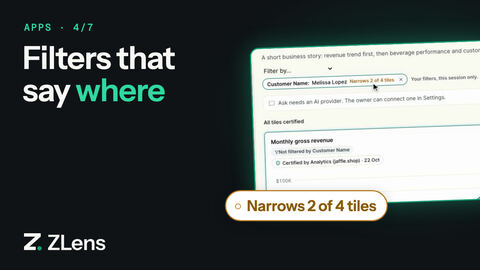
- Open the Filters tab and click New filter, then pick a field.
- Set a Display label and a Control. Every field offers
Searchable list and Searchable multi-select. ZLens reads the
field's name to offer one more kind of control, checked in this order:
- A name that reads like a date (it has
date,time,month,week,quarter,year,created,updatedororderedin it, or ends with_ator_on) also offers Date range and Single date, listed first. - Otherwise, a name that reads like a number to compare (it has
count,amount,total,score,quantity,price,revenue,cost,limitortop_nin it) also offers Number, listed first. - Otherwise, a name that reads like a flag (it starts with
is_orhas_, ends with_flag, or hasenabledoractivein it) also offers Yes / no, listed first.
- A name that reads like a date (it has
- Choose Apply to: This page or All compatible pages.
- Under Tiles, set each tile to Applies or Does not apply. The header counts them, for example Applies to 2 of 3 tiles. Apply to all links every tile that can take the field; when all of those apply, the button reads Apply to none and unlinks them.
- To make readers set the filter, check Require a value. Publishing and runs then need a value for it.
- Click Create filter (Save filter when you change one). It needs a label and at least one tile that applies.
A date control needs no list of values, so you can create it before the page has run.
Each field in the list says where it comes from, for example from Customers. The search ignores spaces, underscores and capitals, so customer name finds Customer Name. A tile that can't take the field says why in plain words, for example Monthly Revenue has no Customer Name field.
A new filter starts linked to the tiles of the data you picked the field from. When other data in the App have an approved field with the same name and kind, Also filter these tiles? lists each as data · field, unchecked. Check one to link its tiles too; nothing is linked by name on its own.
Data that reaches the field through a join (see Fields from related
tables) is offered the same way, with the join
named: a Customer Name filter lists the Orders trend as Orders · via
Customer, and its tile row says From Orders · via Customer. Once checked,
picking a customer narrows the Orders trend to that customer's orders. A tile
you don't link says Not filtered by Customer Name, as before. This works
the same in a dbt project: when a dbt relationships test points
orders.customer_id at a staging copy (stg_customers) as well as at
customers, Orders follows the one to customers, so there is one Customer
group and one Customer Name.
A tile you add after a filter exists is not linked to it either. When it could take the filter (it has the field, or reaches it through a join), the new tile says Customer Name filter can apply to this tile with Apply and Not now. Apply links that one tile; until then it shows everything. In the field list, the data's own main date comes first (for Orders, Ordered At), and a count such as 3 compatible (2 through a join) says when a field reaches tiles only through a join (a customer's First Ordered At reaching the Orders tiles).
Applies or Does not apply
Every tile on the filter's pages gets one of two choices, and both are saved with the page:
- Applies: the filter narrows the tile.
- Does not apply: the tile keeps showing everything, and readers see a Not filtered by filter pill on it. A tile that can't take the field (an App-wide filter on a page whose tiles don't have it) starts as Does not apply, with the reason shown.
Does not apply never blocks publishing. Only a tile with neither choice does, and the publish check sends you to the Filters tab to choose. A Saved query tile marked Does not apply is not filtered even when it has a parameter with the filter's name.
Trying a filter in the editor
The new control appears above the page. Changing its value re-runs only the tiles it applies to, at once, with no need to press Run; the header says "Filter applied · 1 tile updated". Tiles the filter does not apply to keep their result and are never blanked. The values you try in the editor are not saved for readers.
How filters reach each tile
| Tile | How the filter applies |
|---|---|
| Table | A condition on the field the filter is mapped to, also a field of a related table (the tile then joins that table). |
| Metrics | A condition on a dimension of the metric's model, also when the tile doesn't group by it (a KPI). Text search works with the DQL native compiler; with MetricFlow the tile shows Not filtered by. |
| Saved query (fields) | A condition on the saved query's result column the filter is mapped to, like a table field. Click-to-filter works the same way. |
| Saved query (as it is) | A parameter with the filter's name (region, or period_start / period_end for a range), otherwise a condition on the result column the filter is linked to. |
| Draft DQL (not certified yet) | The same as a Saved query tile shown as it is. Its evidence lists the filters that applied and the ones that didn't. |
| Text | Never filtered. |
Dates
Every tile uses the same date rule:
- A date range keeps everything from the start date through the whole end
date:
>= startand< the day after end. 1–31 March includes rows late on 31 March. - You can set just one end. Only a start means "from that day" and the control says From 1 Mar 2025; only an end means "until that day", Until 30 Jun 2025. Clearing both ends removes the filter.
- A single date is that whole day, so it also matches timestamp columns.
- A relative date, such as the last 7 days, becomes a date range first, with today taken in the filter's timezone.
- Dates are compared as calendar days on every tile, timestamp columns included, in the same calendar that groups a chart by day or month. A range ending 30 June keeps an order at 23:30 on 30 June and never adds a July point. The filter's timezone only decides what "today" is.
- A Saved query's
_start/_endparameters receive the dates you picked;_endis the last day itself, not the day after. With only one end set, the other parameter receives0001-01-01or9999-12-31.
What readers see
Readers' pills come from the run that drew the page. When a filter did not narrow a tile, for any reason, the tile shows Not filtered by filter, and the pill's tooltip says why. Text tiles never show filter pills.
6. Preview
- Preview shows the page exactly as readers will see it: the Ask about box, the trust line, the Summary if you added one, and the tiles. Questions typed in Preview are not sent. Edit goes back.
- Run runs every tile on the page. When every tile has run, the header says All tiles up to date.
Under Filters, sort and more, Show is Summarise (add up rows into a KPI, chart or table) or Show rows (pick columns and how many rows; it needs a column that is unique on every row).
On a chart, a hint says what clicking does, for example Clicking a bar filters other Customers tiles, with a button to link more tiles. Table headers show each column's type as an icon; hover it for Number, Text or Date.
7. Publish
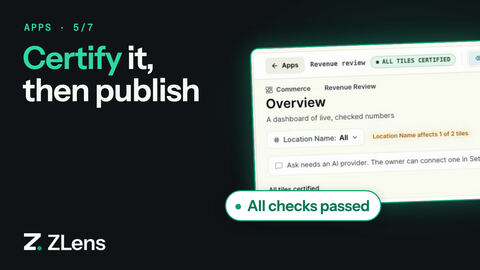
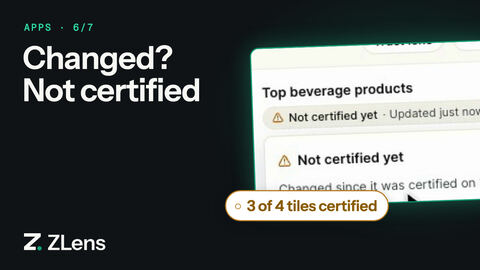
Trust lives at one level, the tile, and has two words: a tile is Certified by name · date (or by you) or Not certified yet. A tile is certified only when everything it can use is certified: its data, every join it can reach (also through a filter) and, for a calculation, every input. Why a tile is not certified is detail in its receipt, for example Checked by you, not certified yet, Changed since it was certified on 22 Oct or Uses a join nobody has certified.
- Click Publish.
- ZLens checks the App. The dialog's title says Ready to publish, or N fixes before publishing when something must change first, such as a page that has not run, a filter that is not wired to any tile, or local draft analysis that cannot leave this machine. Each fix has a button.
- Under the title is the App's one count, for example 3 of 4 tiles
certified (or All tiles certified). It is the same count the App
header, the Apps card and the published
dql.app.jsonshow. - Tiles that are not certified yet are listed, for example 1 tile not certified yet: Order total, Checked, not certified yet. Data: Orders., with Certify now (recommended) (or Certify this join (recommended) for a tile on a join nobody certified). Each opens a short review right there, for a table, a saved query or a join (see Check vs certify), with the same I vouch for this — certify button. Once you certify, the count updates in place and the tile leaves the list; you never leave the App. Certifying is recommended, never required by default.
- Click Publish. Next to it the dialog says what readers will see, for example Readers will see 'Not certified yet' on 1 tile. When every tile is certified it says All checks passed.
Publishing is never blocked by trust unless the project requires it: set
apps.requireCertifiedToPublish: true in dql.config.json (see
project config).
Then the dialog says This project requires every tile to be certified
before an App is published., lists the same tiles with their certify
actions, and shows no Publish button until they are certified; the server
refuses too. The setting is read at every publish, so a change applies
without a restart. There is no per-App rule: Apps made before this change keep
their old "data rule" in their files, and it is ignored.
Data in This App's data that no tile uses does not block publishing. It is not saved with the App, and the dialog says so, for example 1 data source not used by any tile will not be saved with the App.
Publishing writes the App as files in your project. Nothing is committed for you. The App opens in view mode. Its header and trust line say the count (3 of 4 tiles certified); each certified tile says who certified it, from the reader's side (Certified by you · 22 Oct, Certified by Kranthi · 22 Oct), and the others say Not certified yet.
apps/customer-overview/
├─ dql.app.json            the App: name, owners, pages, filters
├─ README.md
└─ dashboards/
   └─ overview.dqld        one file per page
Commit the folder from Source control to share it.
Check vs certify
- Check is what Check and use (and Make row-level) does: ZLens checks the data compiles and runs, what one row is, and how each number is shown. The data stays Not certified yet (its receipt says Checked by you, not certified yet). Tiles use it right away.
- Certify is a person vouching for the data, on purpose. Open it from the publish dialog (Certify now (recommended)) or from the data's ⋯ → Certify… (in the Data tab or Add data). A short review shows what one row is, the row key checked again against all rows, the number formats (cents shown in dollars), the joins it uses and any columns hidden as duplicates. Click I vouch for this — certify. ZLens records who certified it, when, and the checks that passed, in the data's file.
- A saved query certifies in the same kind of review. ZLens runs it and its tests now, through the same rules as Certify in the saved query editor, and shows:
- It runs: Ran just now: 12 rows., or why it did not run;
- Its tests pass: each test and how it did;
- Who owns it: the owner it names. When it names nobody, type the person or team who answers for the numbers; ZLens writes the owner into the saved query when you certify;
- What one row is, when it declares a grain or grouping columns.
A failing test or a query that does not run keeps the button off and says
why. Open in the saved query editor is a small link, for when you want
to change it first. Metrics are certified in your semantic model.
- A join certifies in its own review too: see
Certify a join.
- Certification ends when the thing changes. Edit a certified saved query
or table, or change a certified join's keys or a side's grain, and it is
Not certified yet again. ZLens keeps the date it was certified, so its
receipt, the review and the publish dialog say Changed since it was
certified on 22 Oct. Certify it again to vouch for the new version.
The review re-runs the saved query and its tests. It doesn't show what
changed: read that with git diff or in the saved query editor.
- With a host, certifying needs the steward role, as before, and the host's
admin policy can turn on apps.requireCertifiedToPublish for the project.
Data certified before this change stays certified.
Certify a join
Certify this join in the publish dialog, or ⋯ → Certify the join to Location… in the Data tab, opens a short review of the join:
- The keys: orders.location_id = locations.location_id.
- Checked just now: each order has one location — checked on 61,948 rows. ZLens runs Modeling's one bounded check on the warehouse (counts only, no row values leave it) every time the review opens, and again when you certify.
- What would double-count if it were wrong: for example If locations had two rows for one location_id, every order with that value would be joined twice, so totals such as order total would be counted more than once.
- Filled in the model from these checks, when Modeling lacks a side's grain or key columns: the "one" side's join key (filled and different on every row, checked now) and the Dataset's own row key (checked now). ZLens never fills anything a check did not prove.
Click I vouch for this join — certify. ZLens writes it through Modeling's own path: each side's grain and keys, and the relationship certified against them with the check, who certified it and when. Modeling then shows it Certified; there is no "set the grain and keys first" step. When the check fails (a key repeats on the "one" side, too many rows lose their match), the review says why and nothing is written.
Change a published App
Open the App and click Edit. App Studio opens a draft of the App; the published version does not change until you publish again.
From the terminal
zlens app ls          # list the project's Apps
zlens app show customer-overview
zlens app build .     # build every App and refresh dql-manifest.json
zlens app diff        # what changed in each App; marks tiles whose numbers can change
Run git status --short -uall apps to see the files publishing wrote.